
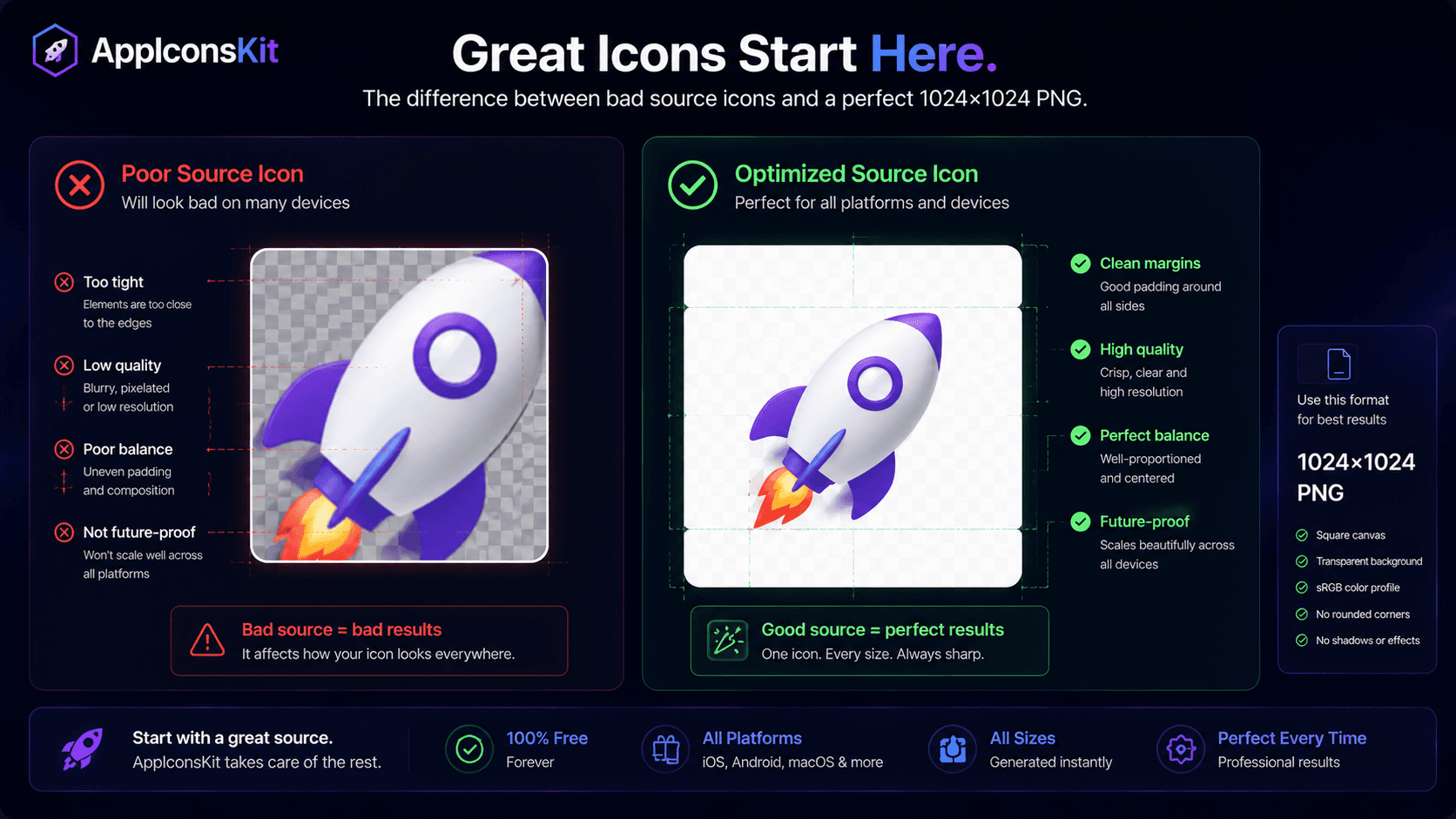
AppIconsKit can generate perfect icons from your source image in seconds, but the quality of what comes out is directly tied to the quality of what goes in. A poorly prepared source image leads to blurry small icons, awkward crops, and platform-specific rendering issues.
This guide covers everything you need to know about preparing the ideal source image so AppIconsKit delivers pixel-perfect results across every platform.
The Golden Rule: Start at 1024x1024
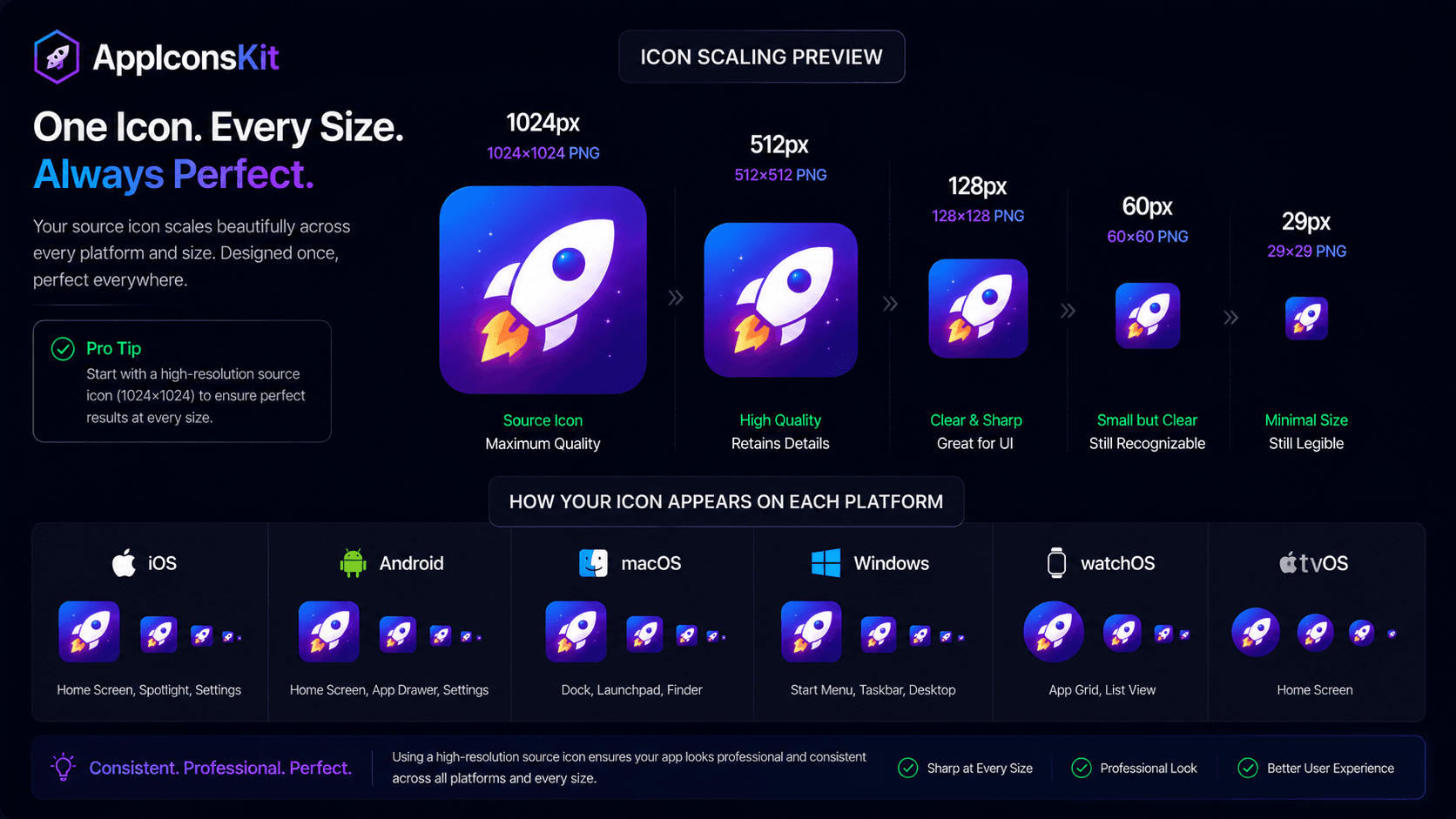
Always create your source icon at 1024x1024 pixels. This is the App Store's submission requirement, and it's also the resolution from which AppIconsKit generates all smaller sizes. Starting at 1024x1024 ensures every downscaled variant retains maximum quality.
Never upscale a small image to 1024x1024; you'll bake in the pixelation. Always start larger and scale down.
File Format Recommendations
- PNG (preferred): Lossless compression, supports transparency, ideal for icons
- JPG: Acceptable but avoid for icons with transparent backgrounds
- PSD: Supported by AppIconsKit, ensure final export is flattened
- SVG: Convert to PNG at 1024x1024 before uploading for best results
- Minimum resolution: 1024x1024px (higher is fine: 2048x2048 also works well)
Design Within the Safe Zone
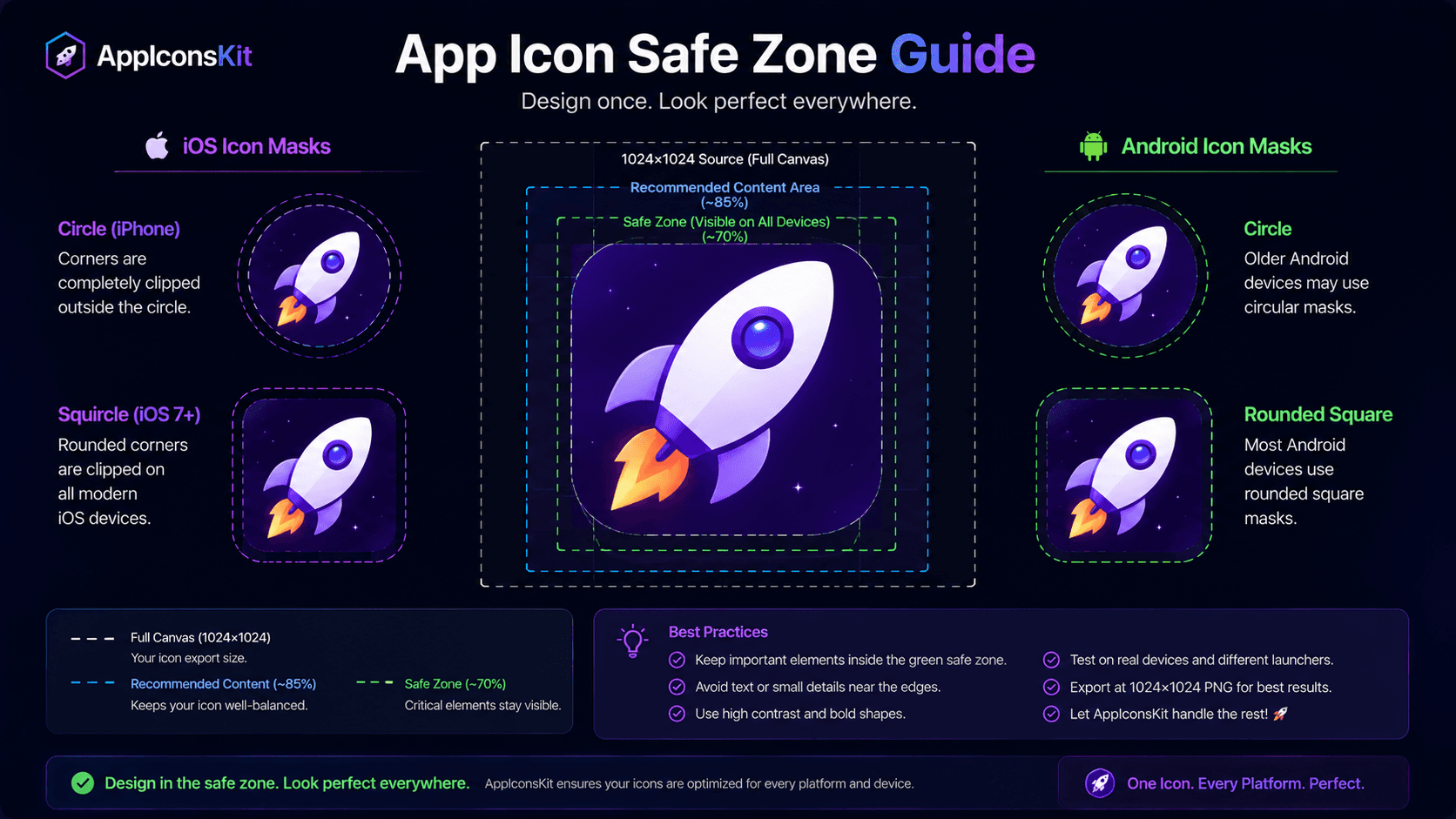
Different platforms apply different masks to your icon: iOS uses a rounded rectangle, Android can use circle, squircle, or square masks depending on the launcher. If your important design elements are too close to the edges, they will be clipped.
The safe zone recommendation: keep all important visual elements within the central 80% of your 1024x1024 canvas. Leave at least 50-100px of padding on all sides.
Color and Contrast Optimization
- Use high contrast between foreground and background for readability at small sizes
- Avoid gradients that look great at 1024px but muddy at 29px
- Test how your icon looks on both light and dark home screen backgrounds
- Avoid pure white (#FFFFFF) as your background: it disappears on light wallpapers
- Avoid pure black (#000000): it disappears on dark wallpapers
- Aim for a strong silhouette recognizable at 20x20px
What to Avoid in Your Source Design
- Fine details that disappear at small sizes (thin lines, tiny text)
- Drop shadows that rely on transparency
- Letterboxing or padding already baked into the canvas
- Busy backgrounds that obscure the main icon element
- Text at small sizes: unreadable below 60px
Android Adaptive Icon Preparation
For Android adaptive icons, you will need two separate layers: a foreground (your icon artwork) and a background (solid color or pattern). Design your foreground on a transparent canvas, keeping your artwork within the central 66% of the frame.
AppIconsKit accepts separate uploads for foreground and background layers, combining them correctly for all Android adaptive icon variants.
Conclusion
The best icon generator in the world can't fix a poorly designed source image. But when you bring a well-optimized 1024x1024 PNG to AppIconsKit, the results are consistently excellent across every platform and every size.
Invest 10 extra minutes in your source design, and AppIconsKit will reward you with a complete icon set that looks professional everywhere your app appears.