
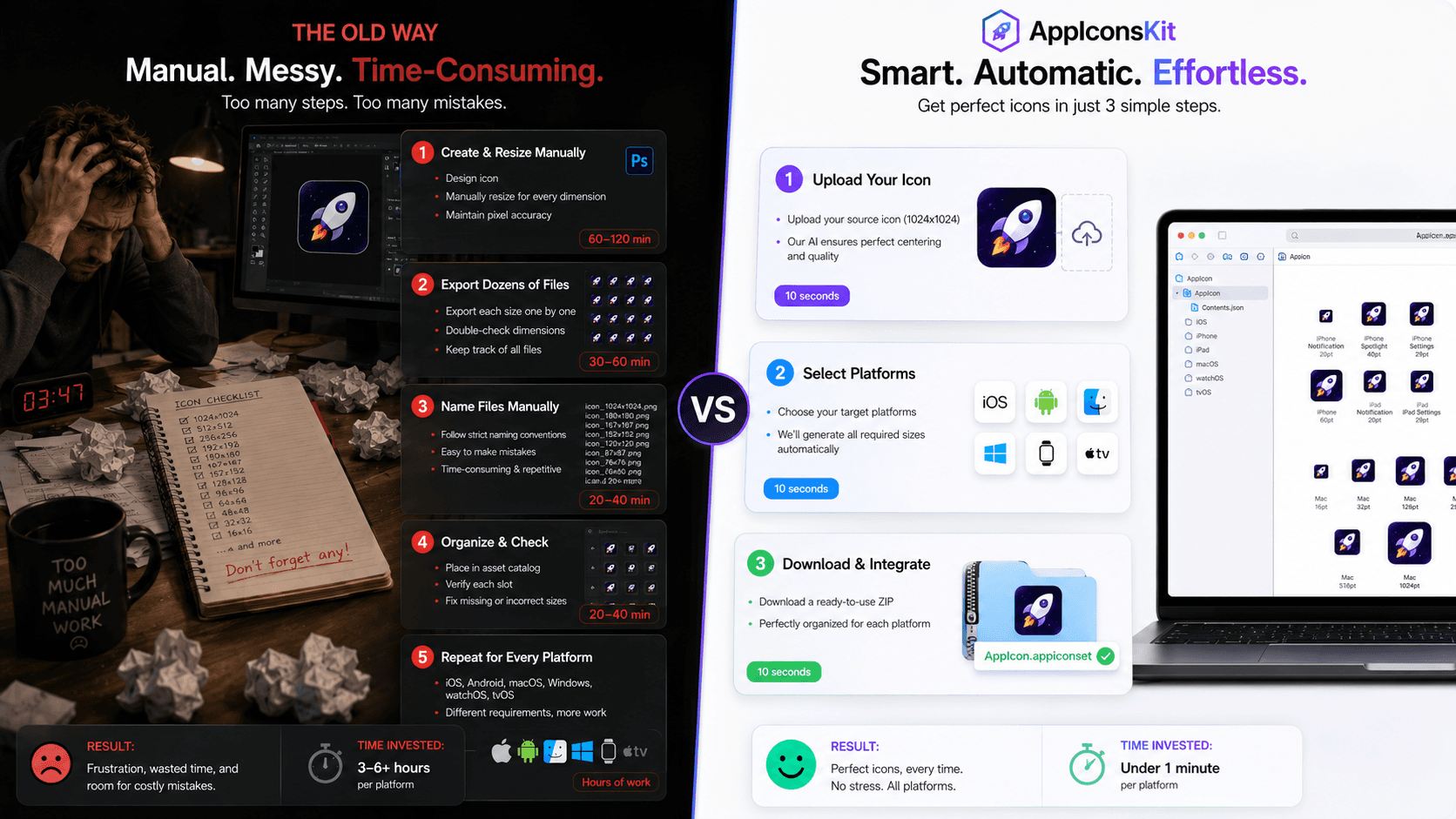
Nothing illustrates the value of a tool quite like a before-and-after comparison. Let's walk through the complete icon preparation journey of a typical mobile developer: first the old way, then with AppIconsKit.
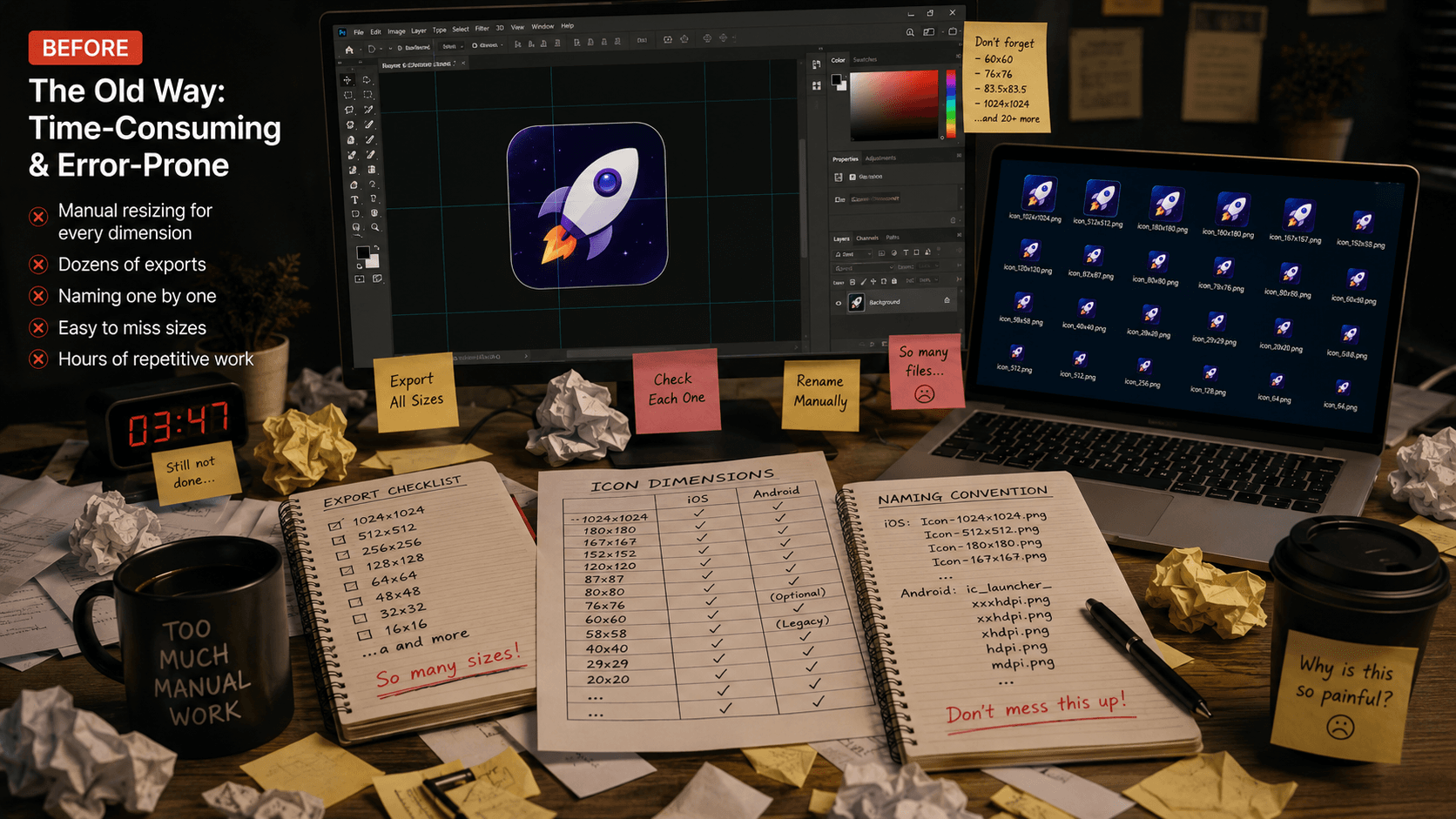
The Old Way: Before AppIconsKit
A typical session preparing icons for an iOS app launch used to look like this:
- 1Open Photoshop or Figma with the source design
- 2Look up current Apple icon size requirements (inevitable Googling)
- 3Export at 1024x1024 for App Store
- 4Export at 180x180 for iPhone @3x, then 120x120 for @2x...
- 5Repeat 15+ times with different dimensions
- 6Rename each file correctly (Icon-60@3x.png, etc.)
- 7Create the AppIcon.appiconset folder manually
- 8Write or copy-paste the Contents.json file
- 9Open Xcode and verify nothing is missing
- 10Repeat the entire process for Android
Time elapsed: 45-90 minutes. Mood: frustrated.
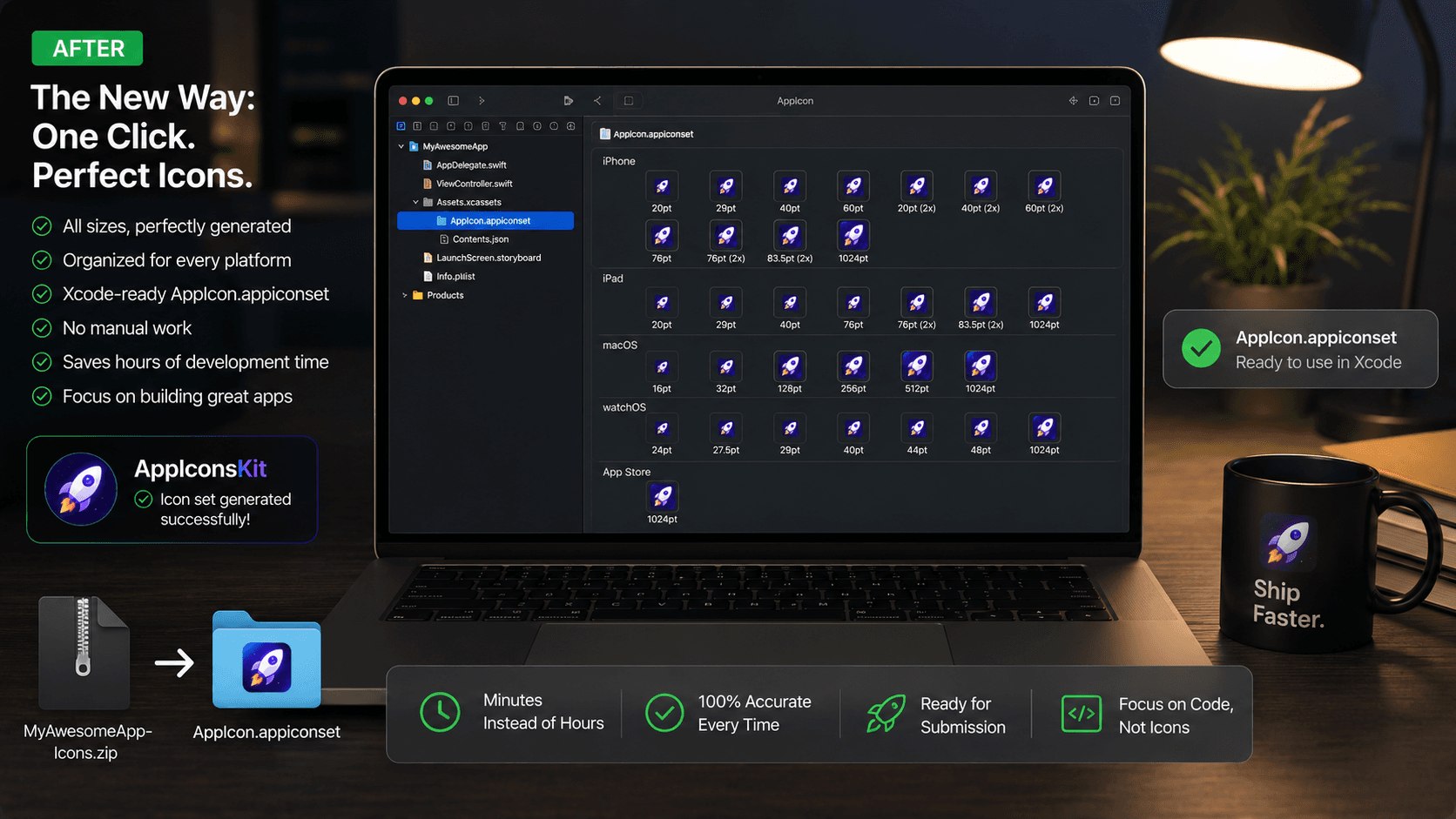
The New Way: With AppIconsKit
- 1Upload 1024x1024 source PNG to AppIconsKit
- 2Select iOS and Android as target platforms
- 3Click Generate
- 4Download ZIP
- 5Drag AppIcon.appiconset into Xcode
- 6Import Android folders into Android Studio
Time elapsed: Under 2 minutes. Mood: great.
What the ZIP Contains
The AppIconsKit output ZIP isn't just a folder of images: it's a complete, project-ready asset package:
- iOS folder: AppIcon.appiconset with all sizes and Contents.json
- Android folder: drawable-ldpi through drawable-xxxhdpi
- Android adaptive: foreground and background variants
- App Store: 1024x1024 PNG ready for submission
- Google Play: 512x512 PNG ready for submission
- macOS: AppIcon.appiconset if selected
- All files named correctly, zero manual renaming required
The Xcode Import in Practice
Xcode imports are now a single drag-and-drop operation. Open your Xcode project, navigate to the Assets catalog, and drag the AppIcon.appiconset folder from AppIconsKit's ZIP directly into it. Xcode reads the Contents.json automatically and populates every icon slot correctly.
No manual assignment. No missing slots. No wrong sizes. Just a complete, validated icon set on the first try.
The Android Studio Import in Practice
For Android, copy the drawable folders from AppIconsKit's output into your project's res/ directory. Android Studio recognizes the naming convention immediately and uses the correct density resources automatically.
For adaptive icons, AppIconsKit generates the XML resource files alongside the image assets, so Android's adaptive icon system works out of the box.
Conclusion
The before and after speaks for itself: a 90-minute manual process reduced to under 2 minutes, with better accuracy and zero room for human error.
That's not just a productivity gain; it's a workflow transformation that compounds across every project you ship.